Tuesday Take Away: 8 Ways that Clouds Beat Blizzards
Once again, the team and I at Cumulus Global found ourselves working from our homes, pizza shops, libraries, and coffee shops. An unusual and record-breaking October Nor’easter dumped about a foot of very heavy and wet snow on us, snapping power poles and trees like, well, twigs. In our area of the state, most towns reported between 60% and 100% of residences and businesses without power. Starting on Saturday evening, many will be without power until late Thursday or Friday.
Businesses tied to their physical offices, again, are learning the hard way how Cloud Computing can help keep things running when life throws the unexpected your way.
1) Message Continuity
If you run MS Exchange, Google Message Continuity not only provides you with bullet-proof spooling if your server or Internet link are down, you get Gmail’s web interface and the ability to send and receive emails. And while most email contingency services dump all activity in your spool to your inbox (including sent message), GMC actually syncs your sent and saved messages, preserving your folders and your sanity.
2) Cloud Storage Mirror
Different than backing up for restores or recovery, synchronizing or mirroring local and network data to a cloud service gives you the ability to access and use your documents, usually through a web interface, from anywhere at anytime. Matching the cloud service and the sync tool to your needs ensures your critical data is available even if your office is not.
3) Google Talk
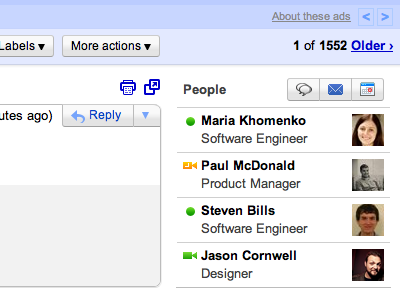
With a laptop or smartphone, the Google Talk app, and an Internet connection anywhere, you can communicate with your team and your associates securely via instant messaging, voice conferencing, or video conferencing. Don’t worry of phone lines or in-house PBXs are down, with Google Talk you can see who is available and converse at will.
4) Google Voice
Get your laptop to an Internet connection with a headset and microphone and you can send and receive calls without a fuss.
5) Hosted VoIP Phone Services
It may seem like the throw-back to the days of Centrex, but hosted VoIP (aka Hosted iPBX) services keep your phone lines working regardless of what is happening with your building. And, you can access and use your lines, extensions, and voice mail from pretty much anyplace with either a VoIP phone, softphone software on your laptop, or your smartphone.
6) Cloud-Based Email
If you are thinking of using the cloud as a contingency service because cloud-based email is going to be available when your in-house system goes off-line, why not make the more reliable service the one you use every day? Do you need or want to keep your in-house server when a cloud-based service will be more reliable and more available? Ok, it’s a loaded question … but still worth some thought.
7) Cloud File Services
Just as with cloud-based email, Cloud File Services will prove more reliable and available over time, and especially during emergencies. Granted, you may have applications, and work flow issues that make using cloud file services as your primary file service impractical. But, you will never know if you don’t take a look. And, many of these requirements work with the right local sync technology in place.
8) Google Apps for Business / Government / Education
There, I finally said it. Google Apps gives you the reliability and availability of the cloud-based Gmail, cloud storage you can mirror or sync, Google Talk, Google Voice integration, and a cloud file service. Better yet, Google Apps rolls these services into an integrated, affordable package with access from most any computer and smartphone. Some of the solutions may require third party components. But, when disaster strikes (and disasters will strike), why not have an IT Ecosystem that is resilient to available rather than you you need to recover.