• Link to Instagram
  • Link to LinkedIn
  • Link to Facebook
  • Support
  • Resource Center
  • News & Events
  • Blog
  • Pay Online
Cumulus Global
  • What We Do
    • Managed Cloud Services Provided by Cumulus Global
    • Cloud Computing Security, Privacy, Compliance, & Continuity
    • Collaboration, Productivity, & Transformation
    • Managed Infrastructure & Platforms
  • How We Do It
    • Understand & Assess
    • Cloud Computing Strategy & Planning
    • Cloud Migration & Deployment
    • Cloud Managed Services
    • Service & Support for Cloud and IT Solutions
    • Global Strategic Services
    • Guide, Educate, & Train
  • What We Offer
    • Managed Cloud Services
    • IT Admin, Service, and Support
    • Security CPR® Managed Security
    • Google Cloud Workspace / Education / Chrome / Voice
    • Google Cloud Platform Computing Services
    • Microsoft 365 and Office 365 Managed Services
    • Microsoft Azure
  • Who We Are
    • Our Mission
    • Our Team and Opportunities
    • Our Cloud Computing Partners
    • Our Reviews and Testimonials
    • Our Community
    • Our Sustainability
  • Click to open the search input field Click to open the search input field Search
  • Menu Menu

Tag Archive for: Google Docs

Posts

More Office/Docs Integration with Suggested Edits

July 28, 2014/in Education, General

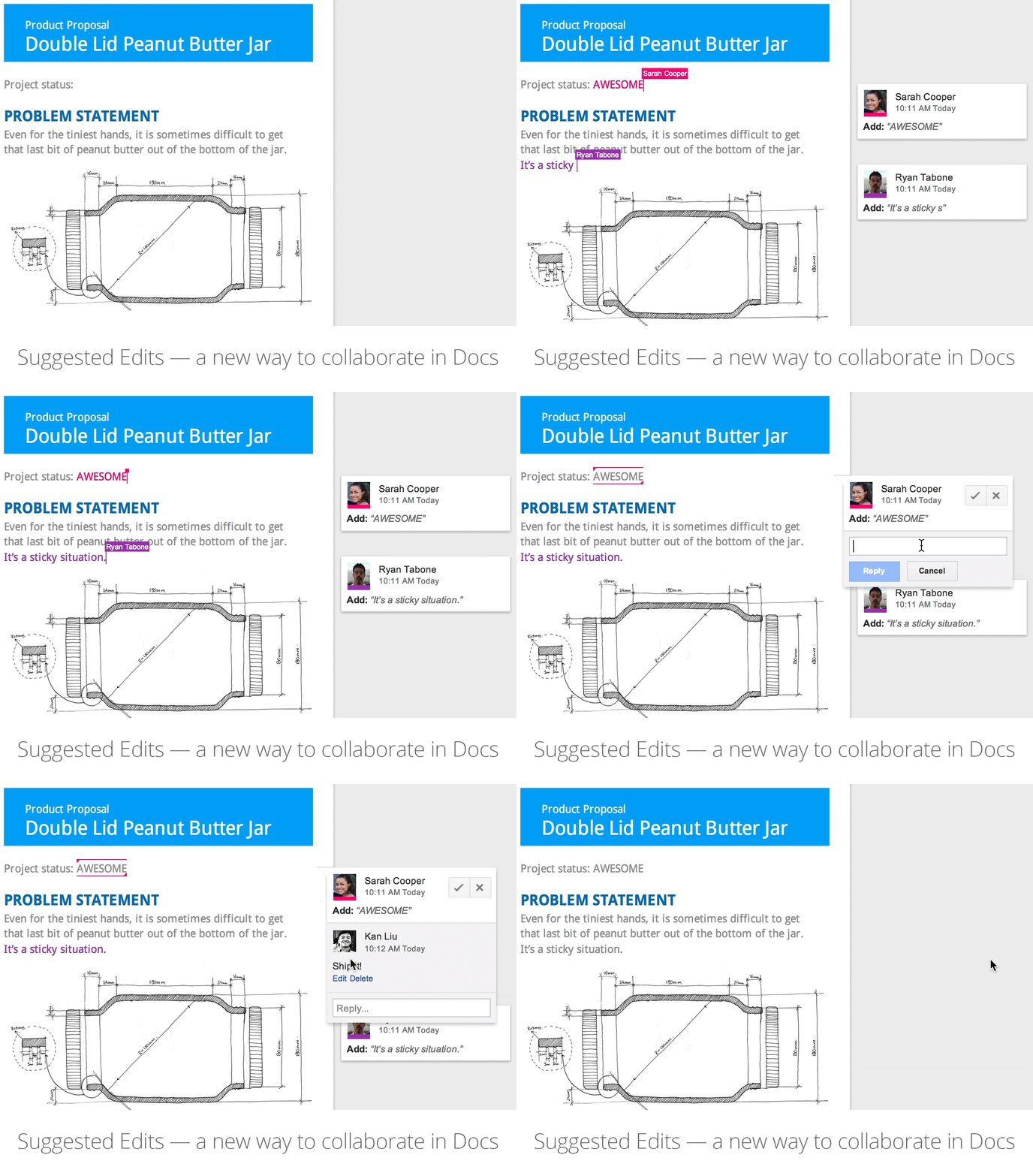
Click to Enlarge; Opens in New Window.


Google recently added Suggested Edits to Google Docs as a way to make edits that can be accepted or rejected by the owner.   As many of us still work with people still using Microsoft Word, and some of us still use Word for some tasks, Google is extending Suggested Edits to further improve interoperability between Google Docs and Microsoft Word.

When opening a Microsoft Word .docx file in Google Docs, “Tracked Changes” are now converted to “Suggested Edits”.

The biggest concern for most users about moving to Google Docs is the ability to work with those still using Word.  With this new feature, the gap continues to narrow.


https://www.cumulusglobal.com/wp-content/uploads/2018/06/Cumulus-Global-logo-with-spacing.png 0 0 Allen Falcon https://www.cumulusglobal.com/wp-content/uploads/2018/06/Cumulus-Global-logo-with-spacing.png Allen Falcon2014-07-28 14:00:142014-07-28 14:00:14More Office/Docs Integration with Suggested Edits

Drive vs Docs = New Google URLs

July 23, 2014/in Education, General

google drive
Google Drive and Google Docs are no longer the same thing.  As Google expanded the file service capabilities of Drive, Docs and Drive were separated to better reflect Docs as the office productivity tools and Drive as the secure file service.

Recently, Google made changes to ensure this distinction is evident in the URLs we use to access these services.

  • drive.google.com still points to Google Drive, and drive.google.com/a/<domain> still takes you to your Google Drive page
  • docs.google.com will soon point to a new Google Docs homepage that takes you directly to the Google Doc apps

We recommend updating your bookmarks as well as your custom URL mappings.

—

If you need a hand with your custom URL mappings, please let us know.

https://www.cumulusglobal.com/wp-content/uploads/2018/06/Cumulus-Global-logo-with-spacing.png 0 0 Allen Falcon https://www.cumulusglobal.com/wp-content/uploads/2018/06/Cumulus-Global-logo-with-spacing.png Allen Falcon2014-07-23 10:30:192014-07-23 10:30:19Drive vs Docs = New Google URLs

Bonus: More Ways to Collaborate in Google Apps

July 9, 2014/in Education, General


Google Apps is designed for secure sharing and collaborations.  Many users, however, still rely on the back-and-forth of email to get their work done.  Here is bonus (more than our 5th) other way to collaborate in Google Apps.

Suggested Edits in Google Docs

Even die-hard users of that “old school” office suite acknowledge that using Google Docs makes it easier to work in one place.  Sharing a document rather than emailing back and forth is more efficient, more effective, and way more cool.

Sometimes, you don’t want to give other full access to edit; you would rather have them make suggestions that you could accept, reject, or modify.  New to Google Docs, collaborators with “Comment” access to your Docs can now make Suggested Edits.  As the owner, you can then accept or reject the suggestions as part of your document review.

—

Want to experience real-time collaboration first-hand?  Contact us and we will setup a solutions site just for you and your team.

https://www.cumulusglobal.com/wp-content/uploads/2018/06/Cumulus-Global-logo-with-spacing.png 0 0 Allen Falcon https://www.cumulusglobal.com/wp-content/uploads/2018/06/Cumulus-Global-logo-with-spacing.png Allen Falcon2014-07-09 10:00:282014-07-09 10:00:28Bonus: More Ways to Collaborate in Google Apps

4th of 5: More Ways to Collaborate in Google Apps

July 7, 2014/in Education, General

docs
Google Apps is designed for secure sharing and collaborations.  Many users, however, still rely on the back-and-forth of email to get their work done.  Here is the 4th of 5 other ways to collaborate in Google Apps.

Comments and Real-Time Chats in Google Docs

You already know that, with permission, colleagues can view and edit shared documents together in real-time.  They can also engage in real-time chat from directly within the document windows.  Instead of calling a meeting, or setting up a conference call or hangout, team members can ask questions, suggest edits, and provide feedback immediately while working on the document.

If team members are working on the document at different times, they can highlight text and add a comment.  Visible in the margin, fellow collaborators are notified by email of the comments and receive a link that opens the document at the comment.  Comments can be directed to specific team members and team members can respond to directed requests by replying to the email.

Once a comment thread is finished, or the issue resolved, mark the comment as “resolved”. While the comment disappears from view, comments remain part of the document history and can be recalled should questions arise down the road.

—

Helping users get the most out of Google Apps is one of the reasons we offer a range of training and professional development services.  Contact us if you want to learn more.


https://www.cumulusglobal.com/wp-content/uploads/2018/06/Cumulus-Global-logo-with-spacing.png 0 0 Allen Falcon https://www.cumulusglobal.com/wp-content/uploads/2018/06/Cumulus-Global-logo-with-spacing.png Allen Falcon2014-07-07 10:00:512014-07-07 10:00:514th of 5: More Ways to Collaborate in Google Apps

Lower Legal Bills: Real Value From Google Apps

August 22, 2012/in General

One of the most tiresome and expensive aspects of contract negotiations is the “redlining” process that takes place as both parties wordsmith the legalese to accurately reflect the agreement and the intent of the parties.

As both parties, using “track changes” make modifications, the document becomes a rainbow of colored words with strike-through, underline, and change bars.  Multiple copies of each version — with and without changes visible (to keep the documents readable)  — zip back and forth as email attachments.  With each iteration, it takes more time and effort to understand, assess, and process the proposed wording.  As important, the history of what was written two versions or more in the past is often lost.

Both parties waste time — and money — keeping track of versions while trying to agree on wording, meaning, and intent.

Stop the Madness !!

Enter Google Apps for Business and the Comments feature in Google Docs.

One party creates or converts the initial draft agreement into a Document in Google Docs and grants the other party “Comment” permissions.  Both parties can now highlight text, suggest new wording, and make notes about intent.  As the parties add comments, the other party is notified so that the discussion keeps moving forward.

Each party can respond directly to the other’s comments in the document or by responding to the notification emails.  The owner of the document and make edits, solicit feedback, and get acceptance.  As the parties agree to intent and wording, they “resolve” each comment thread.  While the thread is no longer visible, it is a permanent part of the document.

When the parties are in full agreement, and all comment threads are inactive, the results are stunning.  The parties end up with:

  • A clean document ready for printing and signatures (physical or electronic)
  • A full record of all of the comment threads — discussions leading to agreement — on the wording, meaning, and intent of the document’s content
  • A full revision history of changes made to the document over the course of the negotiations

And, most importantly, these results did not require the time and money usually wasted managing multiple versions and files, figuring out file names and last modified dates, or playing with “track changes” and “compare documents”.

The results you want and need, more efficiently.  Real Value from Google Apps.


https://www.cumulusglobal.com/wp-content/uploads/2018/06/Cumulus-Global-logo-with-spacing.png 0 0 Allen Falcon https://www.cumulusglobal.com/wp-content/uploads/2018/06/Cumulus-Global-logo-with-spacing.png Allen Falcon2012-08-22 08:45:362012-08-22 08:45:36Lower Legal Bills: Real Value From Google Apps

Inbox Size versus Email Relevance

August 8, 2012/in General

Now that many email services are matching Google Apps’ 25GB inbox, the IT folks areA Clean Inbox wondering if users really need that much space and if mailbox limits are still a good practice.  For most companies, the answer lies in how users use email.

Most emails lose value over time.  Like most conversations, the value of the discussion itself fades once the conclusion or result is reached.  Granted, emails dealing with legal, contract, or financial issues have historical value and should be kept around.  But think about the back-and-forth emails for scheduling a lunch meeting and picking a location.  The conversation is fine; the end result is what really matters.

Use and content are more important than size. For users that do not have mobile access to documents, saving emails with attachments may be the only way to access important information in a timely manner.  For these users, large mailboxes seem useful.

For users addressing customer service issues, emails from past cases create unnecessary clutter in the inbox and folders that can lead to disorganization and inefficiencies.  For these users, limiting inbox sizes forces organization.  Combined with an archive, customer related information is not lost while users have a cleaner environment.

And while some users believe that they need to keep everything and that they will need access to any past email at any point in the future, reality dictates that the need to go back to old emails is very limited.  For these users, the discussion is philosophical more than pragmatic.

The challenge for the IT team, is that nearly every organization has all types of users.

You can provide a common solution. Instead of focusing on “how much” space to provide users, focus on “information value”.  Users should have immediate access to information contained in emails that they need to perform efficiently and effectively.

Taking this point of view, email services can meet all user needs when:

  • Users have local, remote, and mobile access to collaboration tools and shared file services, eliminating the need for sending documents as attachments.
  • The system automatically archives email messages, potentially indefinitely, for future viewing by the end user.
  • Users can automatically groom they size of their inbox and email folders based on age, rather than volume, letting users keep and focus on information with the greatest value.

Creating an email service with these attributes eliminates concerns about remote/mobile access, sending/receiving messages with large attachments, and user efficiency.

The good news: The integrated tools within Google Apps — Gmail, Docs, Drive, and remote services — along with Google Apps Vault (or Message Archive & Discovery) deliver this ecosystem without complex configuration and expensive infrastructure.

https://www.cumulusglobal.com/wp-content/uploads/2018/06/Cumulus-Global-logo-with-spacing.png 0 0 Allen Falcon https://www.cumulusglobal.com/wp-content/uploads/2018/06/Cumulus-Global-logo-with-spacing.png Allen Falcon2012-08-08 08:30:172012-08-08 08:30:17Inbox Size versus Email Relevance

Office 2013 – Much Ado About Nothing New

July 30, 2012/in General


Microsoft recently announced and started providing demonstrations of Office 2013.  And as discussed in this Vanity Fair article, it is clear that Microsoft continues to suffer from lack of innovation.  The number of new features is limited, many of the new features are playing “catch up”, and Office 2013 will lock you into a closed ecosystem.

Here is some of what is “new” in Office 2013:

  • Office 2013 will work with touch and stylus devices like tablets and smart-phones.  You will be able to navigate and annotate documents using touch, much like you can today with a mouse in Powerpoint.  (Not really a new feature, but you can use a touch screen instead of a mouse)
  • Excel 2013 has a few new advanced analytic features that will be useful to hedge fund managers and the like.

Here is some of what is in Office 2013 that is new to Office, but catching up with the competition:

  • In Outlook, you can reply in-line (just like Gmail’s conversation view)
  • In Outlook calendar, you can put an address in the location of a meeting and have a link to pull up a map on Bing (just like Google Calendar)
  • You can save a file on your PC and access it on other devices nearly immediately via cloud storage (just like Google Drive and Docs has allowed for years, as have Box, Dropbox, and others)
  • You can have real-time video chat (just like Google Talk), but only if you install a thick client

Here is what you will NOT see with Office 2013:

  • Real-Time Collaboration:  Users are limited to co-authoring — serial editing by one user at a time
  • Office 2013 running on much of your existing equipment:  Office 2013 will only run on Windows 8.  Get ready to pay to upgrade your operating system and your desktops and laptops in order to install Windows 8 and Office 2013
  • Good Support for Macs.  Macs are second class when it comes to MS Office in general, and with the “Windows 8” only message from Microsoft, it is unclear if a full version of Office 2013 will even make it to the Mac platform
  • Smartphone / Tablet Integration:  Granted, you will be able to run Office 2013 (and connect via Office 365) from MS Surface tables and Windows 8 phones — but who is buying those?  Microsoft is hedging on support for iOS (iPhone/iPad) support and has said nothing about Android-based devices.  If you want to run Office 2013 anywhere, be prepared to change your mobile device strategy.

As noted in this analysis of Microsoft’s 2012 10-K filing on ZDnet. Microsoft is clearly using Office 2013 and Windows 8 to create a vertically integrated ecosystem designed to block out other technologies.  The question is, do you want to lock your business into an ecosystem and a company that has failed, and continues to struggle, to innovate?

https://www.cumulusglobal.com/wp-content/uploads/2018/06/Cumulus-Global-logo-with-spacing.png 0 0 Allen Falcon https://www.cumulusglobal.com/wp-content/uploads/2018/06/Cumulus-Global-logo-with-spacing.png Allen Falcon2012-07-30 11:30:172012-07-30 11:30:17Office 2013 – Much Ado About Nothing New

Google Drive or Overdrive?

July 12, 2012/in General

As more organizations expand their use of Google Apps beyond email into file services, the question of how to best use Google Drive becomes important.  In a previous post, we compared centralized versus distributed use of additional storage.

For many organizations, the question remains as to how best to integrate Google Drive andGoogle Drive Additional Storage with existing, legacy apps on servers and client systems.  Beyond whether or not MS Office stays around, companies often have other systems that run locally using local disk or network drives.

The Google Drive client provides and easy, free, means to sync local data storage with Google Drive and Storage.  The utility, however, has a few limitations:

  • Synchronization of files happens between the My Drive hierarchy in the Google Apps Cloud and a local “Google Drive” folder.  While you can select where the “Google Drive” folder lives, you cannot map existing folders.
  • Users must know where to find and save documents they want synchronized between local disk space and Google Drive.
  • You cannot select specific folders in Google Drive to synchronize down to the client.
  • If a folder is “shared with” a user in Google Drive, the user needs to “move” it under “My Drive” for it to sync to their local disk.

While not a reason to avoid using Google Apps as a file service, using the Google Drive client limits how you deploy your solution and creates some training elements.

Our recommendation is to create a file service using Google Drive that keeps the look and feel of a traditional file service for the end users.   Doing so mitigates training and migration issues and avoids a range of technical issues related to supporting legacy applications.

Look for a solution that offers:

  • A server-specific synchronization tool that does not interfere with existing drive mappings and/or shared network folders.
  • The ability to specify specific folders in Google Drive and/or locally for synchronization.
  • The ability to provide gateway access to cloud-only storage that looks and feels like traditional network disk space.
  • Client applications that run on Windows, Mac, and popular smart phone platforms.
  • That can connect to multiple cloud storage solutions, giving you flexibility in how you configure primary, secondary, and/or archive storage.

While you may spend a few dollars per user per year to get the environment you want, you will see returns.  You should be able to extend the life or retire existing server hardware. With direct access to files, you should be able to reduce (or eliminate) your remote access solutions and/or VPN services, thereby reducing administration, licensing, and support costs.  And best of all, improved collaboration and secure access to information means better productivity for your team and better business results.


https://www.cumulusglobal.com/wp-content/uploads/2018/06/Cumulus-Global-logo-with-spacing.png 0 0 Allen Falcon https://www.cumulusglobal.com/wp-content/uploads/2018/06/Cumulus-Global-logo-with-spacing.png Allen Falcon2012-07-12 08:30:592012-07-12 08:30:59Google Drive or Overdrive?

Tuesday Take-Away: Version Control with Google Drive

July 3, 2012/in General

Google Drive, an integrated component of Google Apps, helps you use Google Apps as a secure file service.  With this capability, you benefit from the revision control built into Google Docs.

Revision Control when Uploading via the Web Interface

When you upload files from the main Google Drive screen, every upload is treated as a separate file, even if the name and source of the file are identical to a previously uploaded file.

To upload a new version of an existing file:

  • Right click on the file name
  • Select Manage Revisions … from the menu
  • Click on Upload New Revision

Revision Control with the Google Drive Sync

If you are running Google Drive on your desktop, every time you save a file, Drive will sync the new revision to Google Docs storage automatically.

Important Retention Rules

By default, Google keeps prior revisions for 30 days and limits the number of revisions to 100.    This means that:

  • Documents that have not been modified for more than 30 days will only have the most recent version available.
  • Auto save features can user up your 100 revision limit quickly.

As an extreme example, if MS Word is set to auto save every 3 minutes and you are editing a document all day, you will only have revisions for the most resent 5 hours.

You can elect to prevent auto deletion for specific revisions by using the same Manage Revisions screen as noted above.  Doing so, however, increases the amount of storage used for the file.


https://www.cumulusglobal.com/wp-content/uploads/2018/06/Cumulus-Global-logo-with-spacing.png 0 0 Allen Falcon https://www.cumulusglobal.com/wp-content/uploads/2018/06/Cumulus-Global-logo-with-spacing.png Allen Falcon2012-07-03 08:13:372012-07-03 08:13:37Tuesday Take-Away: Version Control with Google Drive

Tuesday Take-Away: 6 Ways to Protect IP within Google Apps

June 12, 2012/in General

While some remain suspect of security and privacy with cloud computing, Google Apps actually offers ways to help protect and preserve a company’s Intellectual Property (“IP”) that are not readily available in traditional, in-house systems.  Why worry about IP? Because as business becomes more electronic, your contracts, agreements, change orders, and work product are more likely to be written, reviewed, updated, and negotiated on-line. Protecting your documents, data, and information means protecting your business.

Let’s Get Technical

Google Apps’ underlying data management is Write Once; Ready Many (aka “WORM”). In other words, once information is saved in Google’s system it cannot be altered.  Unlike MS Exchange or a Windows File Server on which a Domain Administrator can alter any existing content anywhere, once data is saved in Google Apps, it cannot be modified.

Granted, you can reply to an email and modify the embedded copy of the original message. But, the original message is still saved as it was received.  Similarly, you can open a Google Doc and modify the content, but the revision history is there and you can go back to a prior versions.

The big risk to WORM is the power to delete … but we have a solution for that too.

Here are Six Ways To Protect Your IP with Google Apps:


1) Comments in Google Docs

Even if you switch to MS Word for your final formatting, draft your documents in Google Docs using the “Insert Comment” feature.  By keeping editing writes to yourself and giving comments only permission to your associates, you have full control of the document’s contents.  You associates — be they co-workers, a client, or opposing council — have the ability to highlight portions of the document and comment.  Whether they ask questions or suggest alternate wording, you can reply in-kind via comment as you edit the document.

Once final agreement is reached, you can “resolve” the comment.  While it disappears from view, it is part of the permanent history of the document.

Imagine two lawyers discussing and agreeing to the intent of a contract clause.  If an issue were to come up at some point in the future, any discussion of the ‘original intent’ of the clause would be cut short by the comment thread saved at the time.

2) Message Discovery (now); Google Vault (soon)

As noted above, the big risk to IP in Google Docs is deletion.  Google Message Discovery (GMD) available to all Google Apps users,  provide a secure, compliant archive of all inbound, outbound, and internal email messages with retention of up to 10 years.  The service provides search and e-discovery tools as well.

Imagine a client refusing to pay for work that was not “officially authorized”.  With GMD in place, you can produce the email thread discussing the work and providing the authorization.

Google Vault, available to new Google Apps customers now and all Google Apps users in the near future, extends the archiving ability of Google Apps in several ways.   Google Vault recognizes that you IP is not just in email and that your retention needs will vary.  Google Vault lets you:

  • Archive email, instant messages, and documents
  • Provide unlimited retention of archived information
  • Take advantage of the WORM underpinnings of Google Apps to maintain and protect your IP.

3) Google Drive and Docs

In our increasingly electronic world, more work gets done on the go.  By implementing Google Drive, your users have the ability to work locally while synchronizing and saving files automatically in Google Docs.  Beyond providing a convenient way to work — online or offline — Google Drive provides a level of protection for your IP from local hardware issues.  Combined with a backup/recovery strategy (see below), you have even better data protection.

Also, by adding additional space, you can also strategically create a secure file sharing structure where ownership of folders and files mimics traditional file server models.

4) Protected Folders

One way to protect IP is to ensure that final documents are tamper-proof and protected from deletion.  You can prevent critical documents from being editing or deleted by setting up protected folders.  These folders provide defined view permission, but will prevent users from tampering or removing critical information from within Google Docs.

CloudLock is one such service that lets you create protected folders.  In doing so, you can also determine who can add files to these folders, who can view folder content, and which administrative account manages the folders.

5) Backup / Restore

While Google Apps prevents data loss from hardware/software issues and provides version histories, Google Apps cannot prevent user mistakes or acts of malice.  Files not protected from deletion (see above) are vulnerable.  Additionally, you still need to protect against problems that can occur on any file server, such as uploading and sharing virus-infected files.

Given that in users have critical data in each of the Google Apps services, tools like Backupify offer a broad range of protection.  Backupify protects user content in email, calendar, contacts, docs, and sites.

6) Permissions Monitoring

Google Apps makes collaboration easy.  And, while you can restrict users ability to share to some extent, understanding the visibility of IP within and outside your business, and monitoring your documents for changes in exposure is an emerging best practice.

A key element of the CloudLock service are the ability to monitor changes in document permissions, the ability to change document ownership, and the emerging ability to set alerts based on keywords and business rules.

Wrap Up

When moving your data from in-house systems to Google Apps or other cloud services, you want and need to make sure that your data is at least, if not more, secure and private. Just as with in-house systems, you have tools and services available to manage and protect your intellectual property when using cloud solutions.  Google Apps provides a great foundation with an infrastructure designed to protect data with every save.  Integrated, third party tools like CloudLock and Backupify, along with new features in Google Apps itself, provide a manageable, secure, ecosystem.

https://www.cumulusglobal.com/wp-content/uploads/2018/06/Cumulus-Global-logo-with-spacing.png 0 0 Allen Falcon https://www.cumulusglobal.com/wp-content/uploads/2018/06/Cumulus-Global-logo-with-spacing.png Allen Falcon2012-06-12 21:58:272012-06-12 21:58:27Tuesday Take-Away: 6 Ways to Protect IP within Google Apps
Page 1 of 212

Recent Posts

  • 9.5 Questions to Answer for a Secure AI Foundation
  • Three Pillars of AI Security for SMBs and Schools
  • Secure Gemini AI in Google Workspace

Featured Blog Topics

  • Artificial Intelligence / AI
  • Managed Cloud Services
  • Cybersecurity

Read

  • Blog
  • Newsletter
  • Microsoft Cloud Monday
  • Google Workspace Wednesday

Watch

  • 3T@3 Series
  • Coffee and Clouds
  • Event Recordings
  • Cumulus Global Channel

Explore

  • Library
  • Events Calendar

Phone / Fax / Email

  • 866-356-1202
  • 508-948-4070
  • info@cumulusglobal.com

Headquarters / Boston

  • Street Address

    4 Bellows Rd / 2nd Floor
    Westborough, MA 01581

  • Mailing Address

    PO Box 1129
    Westborough, MA 01581-6129

Regional Offices

  • Southeast Office

    120 W Trinity Pl
    Decatur, GA 30030

Copyright © 2026 - Cumulus Global | Privacy Policy | Terms of Service | Disclaimer | Website by Cold Spring
Scroll to top Scroll to top Scroll to top